Manage Engine Installation
The installation process involves the following two main steps:
Upload the Windows Sensor MSI package to Manage Engine
Configure and deploy the package
Step 1: Upload the Windows Sensor MSI package to Manage Engine
In the Endpoint Central web console, navigate to Software Deployment > Package creation > Packages.
Click Add Package and select Windows.
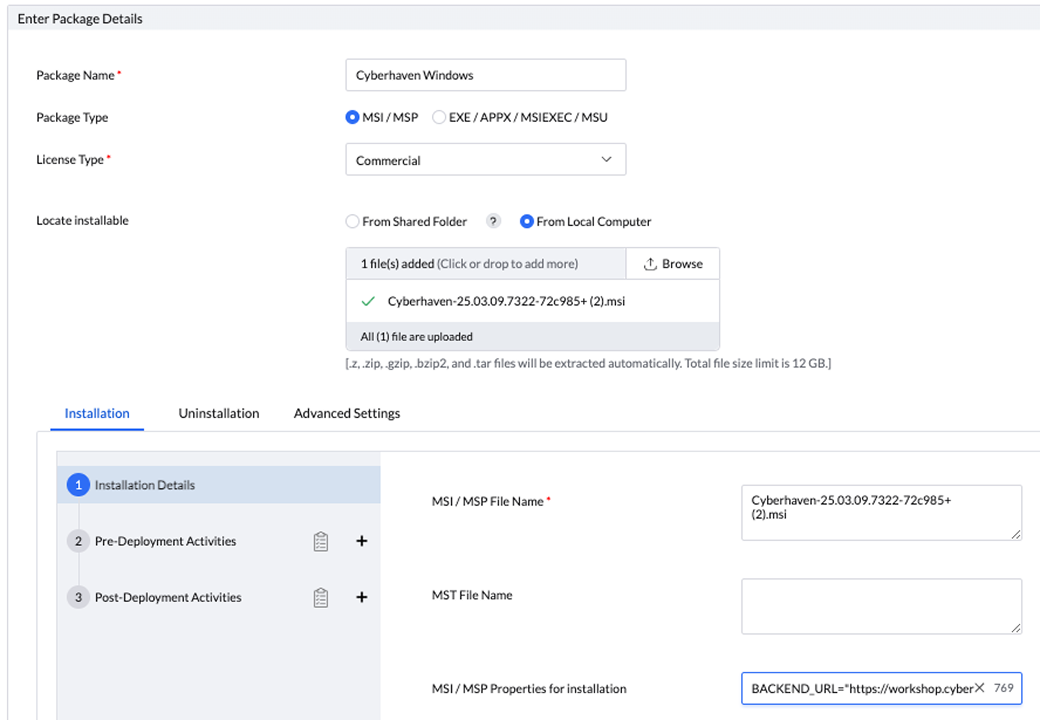
In the Package Details window, enter the following:
Package Name: Enter a descriptive name.
Package Type: Select MSI/MSP.
License Type: Select Commercial.
Locate installable: The easiest method is to upload the MSI file from your local computer. If you encounter issues uploading, temporarily disable your antivirus software.
MSI/MSP file name: Enter the exact name of the MSI file.
MST File Name: Leave this field blank.
MSI/MSP properties for installation: Add the backend URL and the install token from the command line.
Step 2: Configure and Deploy the Package
In the Endpoint Central web console, navigate to Software Deployment > Install/Uninstall Software and click on Computer Configuration under Windows.
Enter a name and description for the configuration. For example, “Cyberhaven Windows Sensor Deployment”.
Under Install/Uninstall Windows Software, select the package created in “Step 1: Upload the Windows Sensor MSI package to Manage Engine”.
Select the operation type and Install.
Expand Configure Install/Uninstall options and select the user account you want to use for deploying the sensor. "System User" is the default user account selected. If you select “Run As User”, then you must provide the user credentials. If you don’t have the user credentials, you may need to create them to run the package.
Under Deployment Settings, you can choose “Deploy anytime at the earliest" or "Download immediately and deploy during deployment window".
Under Define Target, select Local Office or the configured domain.
Then, filter the target computers. If you want to test the deployment, select Computer and add individual computers, or select Custom Group to add a preconfigured group of computers.
Leave the default settings under Execution Settings.
Click Deploy or Deploy Immediately.
NOTE After completing the sensor installation, securely store the .msi package, as it will be needed for any future uninstallation.